


Video To Photo - Frame Capture
4.2266.00 Reviews
App Specs
- Version
- 4.1.2
- Updated On
- License
- Free
- Downloads
- 1,000,000+
- Developer
- KallosSoft
- Categories
- Video Players & Editors
- Platform
- Android
Screenshots
 Analysis by AppCompare
I’d start by deciding what you need from a video still: a quick image to share, or the cleanest possible frame for a more careful edit. Video To Photo - Frame Capture is aimed at the first step—finding a moment inside a clip and saving it as a picture—rather than replacing a full photo editor. That narrow purpose is useful, but it also shapes where you may run into friction: the result depends on the source video, and any finishing work may still happen elsewhere.
Where a simple frame grab can get tricky
The basic idea sounds effortless, yet choosing a satisfying still is not always as simple as stopping a video at the right time. A moving subject may be blurred in several neighboring frames, while a short expression or gesture can change between them. Being able to move through footage frame by frame is therefore more valuable than grabbing a random screen image: it gives me a chance to compare nearby moments and choose the one that actually works.
There is a trade-off, though. A frame taken from a video inherits the video’s clarity, lighting and composition. If the clip is shaky, dark or compressed, extracting a still will not restore detail that was never captured. I treat this app as a way to select the best available moment, not as a tool that turns ordinary footage into a high-quality camera photo.
It also helps to separate two different problems: locating a frame and improving it. The app’s appeal is the first task. If I need to crop out a distracting edge, adjust color or retouch the image, I should expect to finish in another editor. That extra handoff is a small inconvenience for a one-off picture, but it matters if I plan to process a large batch of clips.
Checks that make the first attempt smoother
When a video is not immediately available to choose, I first check that it is present in the device’s gallery and that I am looking in the right place. A clip may be stored in a different folder from the camera videos I normally browse, especially if it came from a messaging app or another source. Confirming its location before troubleshooting the frame tool can save time.
I would also test with a short, familiar clip before relying on an important recording. That gives me a low-stakes way to learn how the browsing and capture steps feel on my device, and to check where the resulting image appears. If the first attempt looks soft, I compare it with the original video at the same moment rather than assuming the capture step caused the loss of detail.
Video To Photo - Frame Capture is a free app from KallosSoft, with optional in-app purchases ranging from $3.99 to $39.99 per item. It is rated for Everyone, and the current version is 4.0.12; the listed minimum Android requirement is 7.0. Those details make it worth checking device compatibility before installing, particularly on an older phone. Its 4.2 average from around 21,000 ratings and over 1 million installs suggest that many people use it, though popularity alone cannot tell me whether it fits a particular workflow.
Worth Reading Before You Choose

EA SPORTS FC Mobile 26 Is a Bigger Football Game, but It Takes Time

Flipboard Shows What News Apps Must Do Beyond the Feed

Switching to Android Auto Means Rethinking Your Driving Routine

Google Calendar Makes a Crowded Week Easier to Manage

Ludo King Makes the Most of the Minutes Between Plans

Baby Panda World Brings Quick Play to Modern Phones, but Its Game Library Feels Busy
A practical workflow for choosing a useful still
For a family clip, a pet video or a brief moment from a trip, I would open the original recording, move near the moment I want, and inspect the neighboring frames instead of settling for the first plausible image. A useful trick is to look for a pause in motion: a face turned toward the camera, a subject’s feet planted, or a hand no longer crossing the face. Even a tiny shift in timing can make a still feel deliberate rather than accidentally grabbed.
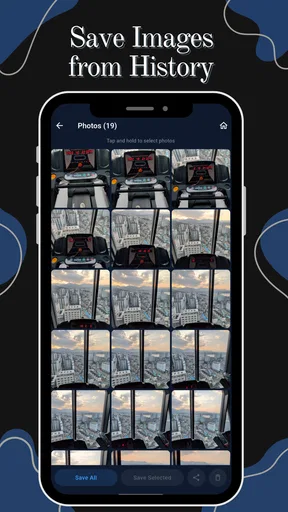
Once I save the frame, I would check it in the gallery before deleting or trimming the source video. That simple check confirms that I captured the intended moment and gives me a chance to compare the still with its surroundings in the clip. If it is not quite right, I can return to the footage and try a nearby point rather than editing a weak capture and hoping it improves.
For social sharing, I would keep the original video until I know the extracted image looks good at the size I intend to use. A frame that seems clear on a phone screen may show blur or softness when enlarged. If the picture needs a different crop or a color adjustment, I would make that change in a separate image editor; keeping the capture and editing steps distinct makes it easier to tell whether a problem comes from the source frame or the later edit.
Recovering when the result is missing or disappointing
If I cannot find a saved image, I would first revisit the gallery and check the places where newly saved pictures normally appear, rather than immediately repeating the entire capture process. I would then confirm that I completed the save action and try one more frame from a clip I can easily recognize. This narrows down whether the issue is finding the output or selecting the right moment.
If the image is present but looks wrong, I would compare it with the video itself. A blur that is already visible in the source is a timing or recording limitation, not something frame selection can repair. I would move to a nearby frame and look for a moment when the subject is more still. If the picture is clear but framed badly, that is when a separate crop tool is the sensible next step.
When a video does not appear in the picker, checking its location and whether it plays normally in the gallery is a more useful first move than repeatedly tapping around. If the file itself will not play, the problem may be with the clip or its storage rather than the frame-capture workflow. Trying a known-good video can help distinguish those cases without making assumptions about the app.
When another tool is the better choice
Compared with taking a screenshot while a video is paused, a dedicated frame-grabbing workflow is more intentional: I can inspect the footage and choose a precise moment rather than capturing the whole screen with playback controls or other interface elements in the way. That makes it handy for a quick still from a personal clip. A built-in gallery editor may be more convenient, however, if it already offers the frame selection and image adjustments I need; adding another app is not worthwhile for everyone.
A full video editor is a better fit when I need to cut clips, arrange several shots or build a finished video. A photo editor is better when the main job is retouching, adding text or preparing an image for a particular layout. This app sits between those tasks: it focuses on extracting a picture from existing footage. I would choose it when frame selection is the bottleneck, not when I want an all-in-one media studio.
It is also not the right choice if I need a still with more detail than the source video can provide. A dedicated camera photo, when available, will usually be the better starting point for a high-quality image. And if I only need one casual screenshot, the phone’s usual screenshot method may be faster, even if it is less tidy. The value here is in selecting a moment carefully enough to justify a separate frame-grabbing step.
Who will get the most from it
I would recommend it to someone who regularly notices good moments buried inside videos: parents saving expressions from family clips, pet owners trying to catch a still pose, or travelers choosing a representative image from a moving scene. It can also suit anyone who wants a simple way to pull a picture from footage without opening a more involved editing suite.
On the other hand, people who rarely extract images from video may not need a dedicated tool. Those who expect built-in retouching, advanced image controls or a complete video-editing workflow should look elsewhere or plan to pair this with another app. The key question is not whether frame capture is useful in theory, but whether it is a task you do often enough to appreciate having a focused route for it.
My experience with the frame-capture workflow
Ever found yourself watching a video and wishing you could capture that perfect moment as a photo? Well, that's exactly where Video To Photo - Frame Capture comes in handy. I recently downloaded this nifty app, and let me tell you, it has quickly become a go-to tool on my phone.
First Impressions
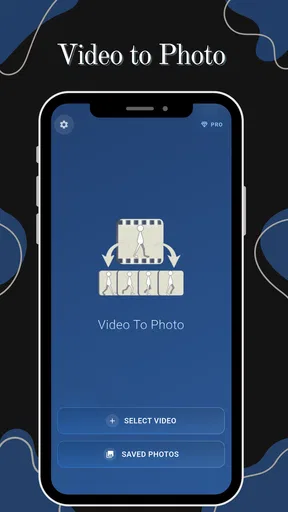
As soon as I opened the app, I was struck by its clean and straightforward interface. It’s not cluttered with unnecessary features, making it super easy to navigate. The app leads you right to the core functionality without any fuss, which is a relief for someone like me who appreciates simplicity.
Features That Stand Out
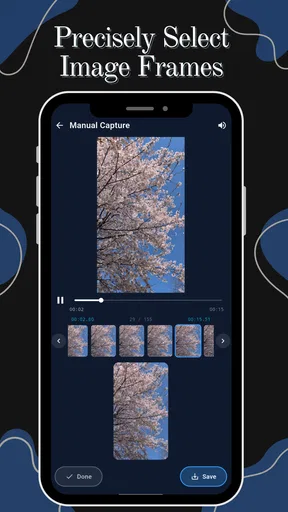
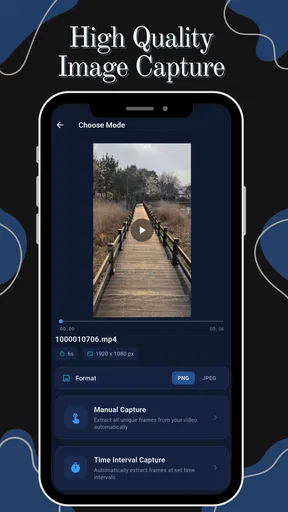
The app allows you to pull frames from any video with precision. You simply load up a video from your gallery, and the app lets you scroll through the frames. This means you can pick out the exact moment you want to capture without having to pause and screenshot, which, let’s face it, is usually a hit or miss.
What I found particularly impressive is the frame-by-frame navigation. This ensures you don’t miss a beat, and you can capture the exact expression or action you’re aiming for. Plus, the app supports various video formats, so it fits well with whatever media you have on your device.
Ease of Use
Using the app is as intuitive as it gets. You don’t need a degree in tech to figure it out, which is always a plus in my book. The process of capturing a frame is swift, and exporting the image to your gallery is seamless. You can then share your captured images across different platforms directly from the app, making it super convenient to show off your skills to friends or on social media.
Performance
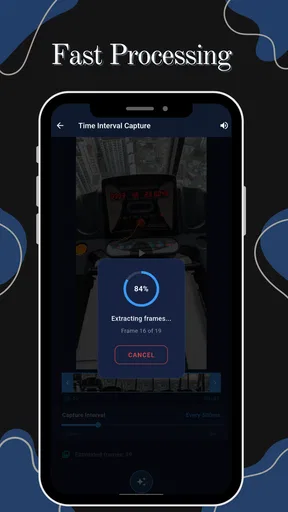
Performance-wise, the app is pretty solid. It runs smoothly on my device without any annoying lags or crashes. It doesn’t hog much of my phone’s resources, which is great because who needs an app that slows everything down, right?
Room for Improvement
While the app is fantastic, there’s always a little room for improvement. One feature I would love to see is the ability to add simple edits directly within the app. Maybe some basic filters or cropping options could take it to the next level. Right now, you’d have to use another app for any post-capture edits, which adds an extra step to the process.
Final Thoughts
All in all, Video To Photo - Frame Capture does exactly what it promises, and it does it well. It’s a must-have for anyone who loves capturing moments from videos without the hassle of complicated tools. Whether you’re trying to grab a memory from a family video or snag a frame from a concert clip, this app has you covered.
So, if you’re on the hunt for a reliable app to extract photos from videos, give this one a try. You might just find it becomes a staple in your app collection like it has in mine.
Pros
- High-quality frame extraction.
- User-friendly interface.
- Fast processing speed.
- Supports multiple video formats.
- No watermark on saved images.
Cons
- Limited editing tools.
- Ads in free version.
- No cloud storage sync.
- Occasional crashes on older devices.
- Requires high storage space.
FAQs for Video To Photo - Frame Capture
What is Video To Photo - Frame Capture?
Video To Photo - Frame Capture is an app that allows users to extract high-quality photos from their video files. It’s perfect for capturing those elusive moments that you might not have been able to snap in real-time. The app supports a variety of video formats and offers easy-to-use tools for precise frame selection.
How do I use Video To Photo - Frame Capture to extract frames?
Using the app is straightforward. Simply upload your video to the app, play the video, and pause at the desired frame. You can then use the frame capture feature to save the image to your device. The app also provides tools for enhancing and editing the captured frames.
Does Video To Photo - Frame Capture support all video formats?
The app supports a wide range of video formats including MP4, AVI, MOV, and more. However, it’s always a good idea to check the specific format compatibility on the app’s product page to ensure your videos can be processed without any issues.
Is Video To Photo - Frame Capture free to use?
The basic version of the app is free to download and use, offering essential features for frame extraction. However, there may be in-app purchases or a premium version available that unlocks additional features, such as higher resolution exports or advanced editing tools.
Can I edit photos within Video To Photo - Frame Capture?
Yes, the app includes basic photo editing tools that allow you to enhance the captured frames. You can adjust brightness, contrast, and apply filters to make your photos look perfect. For more advanced edits, you might need to use additional photo editing apps.


